
How to give out campaign codes in an ActiveCampaign automation
A campaign can give its codes to your ActiveCampaign contacts from an automation. The automation calls Coupon Carrier with a webhook, Coupon Carrier saves a code in a field on the contact, and your own ActiveCampaign email shows it.
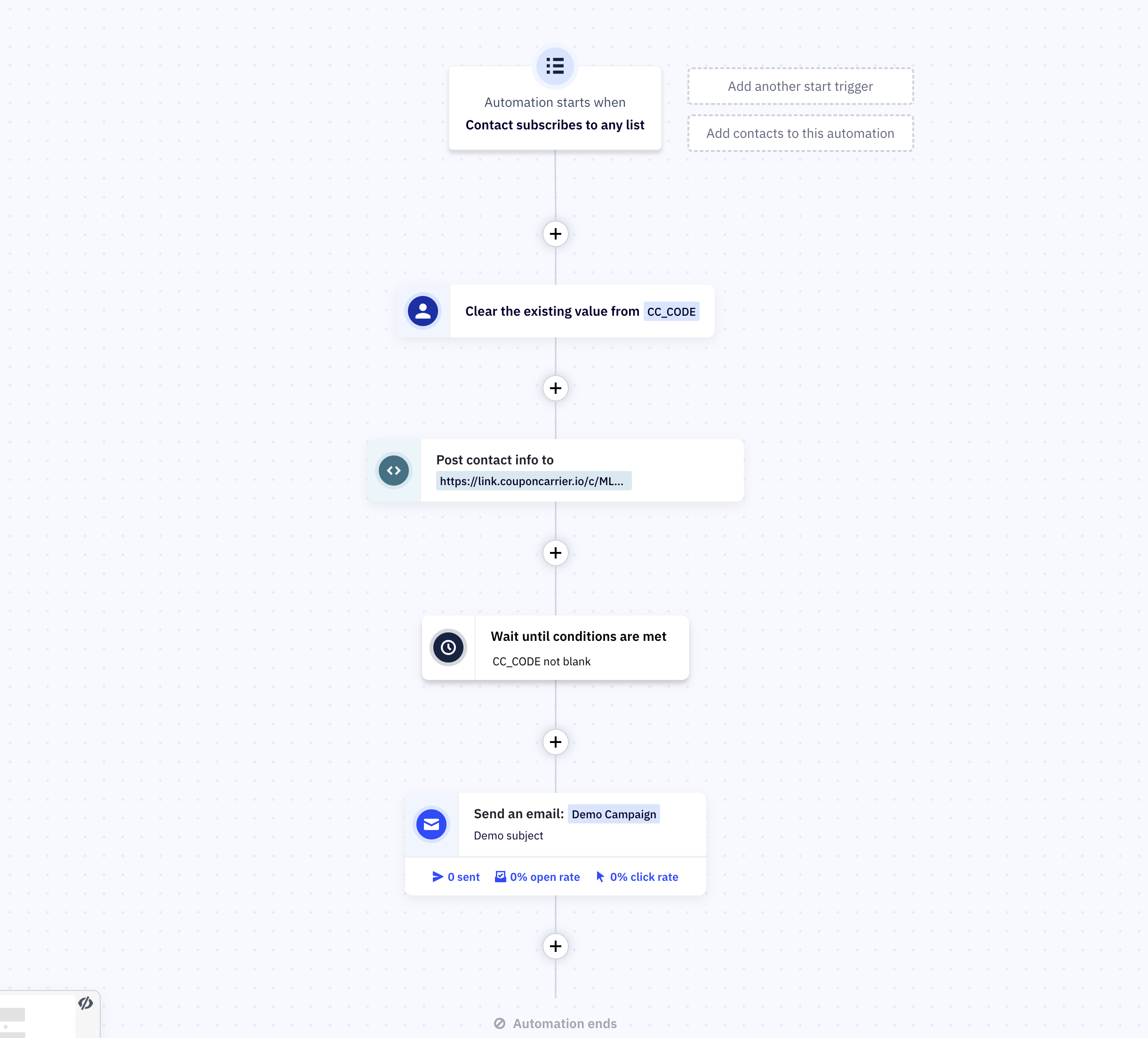
Your automation needs five steps:
- Any trigger starts the automation.
- Update contact clears the field for the code.
- Webhook asks Coupon Carrier for a code.
- Wait until the field is not blank.
- Send email shows the code with a personalization tag.
Before you start
- You need a campaign with at least one offer that has codes.
- A campaign uses one email tool. All its offers go through the ActiveCampaign account you choose in step 1, and your automation must be in that same ActiveCampaign account.
Step 1: Choose your ActiveCampaign account in the campaign
- Open your campaign in Coupon Carrier.
- Open Email tool. If the campaign doesn't use it yet, you find it under Other ways to give out vouchers. Click Set up.
- Under Your email tool account, click Use this account next to your ActiveCampaign account. If ActiveCampaign isn't connected yet, click the ActiveCampaign button in the same section to connect it.
Step 2: Create the field for the code
Coupon Carrier saves each code in a contact field. The Field for the code box suggests CC_CODE . That is the field's personalization tag.
- If you see the notice Create CC_CODE in ActiveCampaign, click Create field. Coupon Carrier adds a text field with that tag to your ActiveCampaign account.
- Under the box you now see a check mark and "CC_CODE is in your ActiveCampaign account."
Do you already have a field for codes? Enter its personalization tag in Field for the code instead, without the % signs. It has only letters, digits or underscores.
Step 3: Copy the offer's URL
- In the Email tool section, find Webhook. It lists your offers.
- Click Copy URL next to the offer your automation should give.
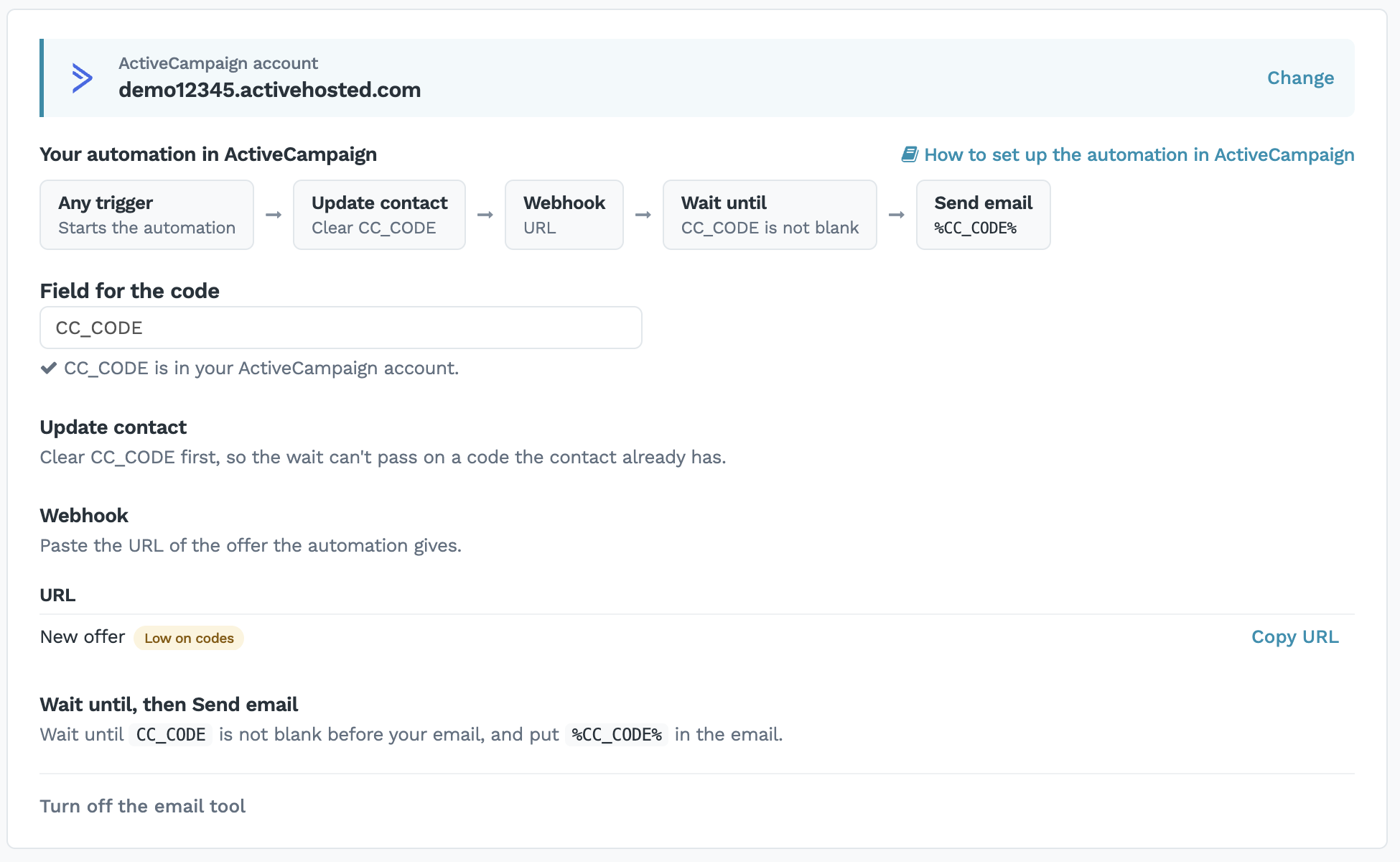
Each offer has its own URL, and one webhook gives one offer. To give another offer, use that offer's URL in another webhook step.
Keep the URL to yourself. Anyone who has it can ask for codes for your contacts.
Step 4: Build the automation in ActiveCampaign
Create an automation or open one you have. Use any trigger you like. Then add these four steps in this order.
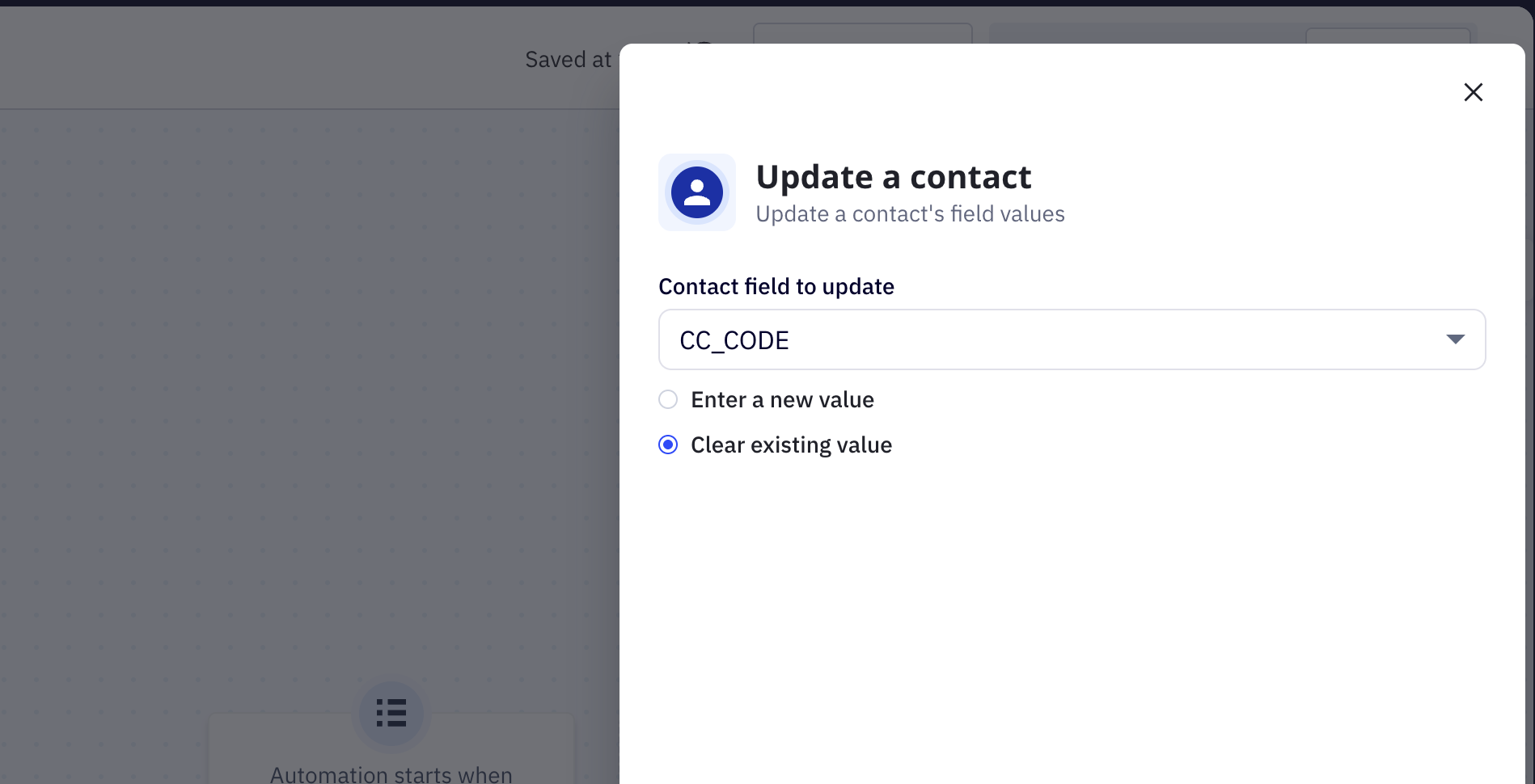
First, Update a contact. Under Contact field to update, choose CC_CODE and select Clear existing value. This clears the field, so the wait can't pass on a code the contact already has.
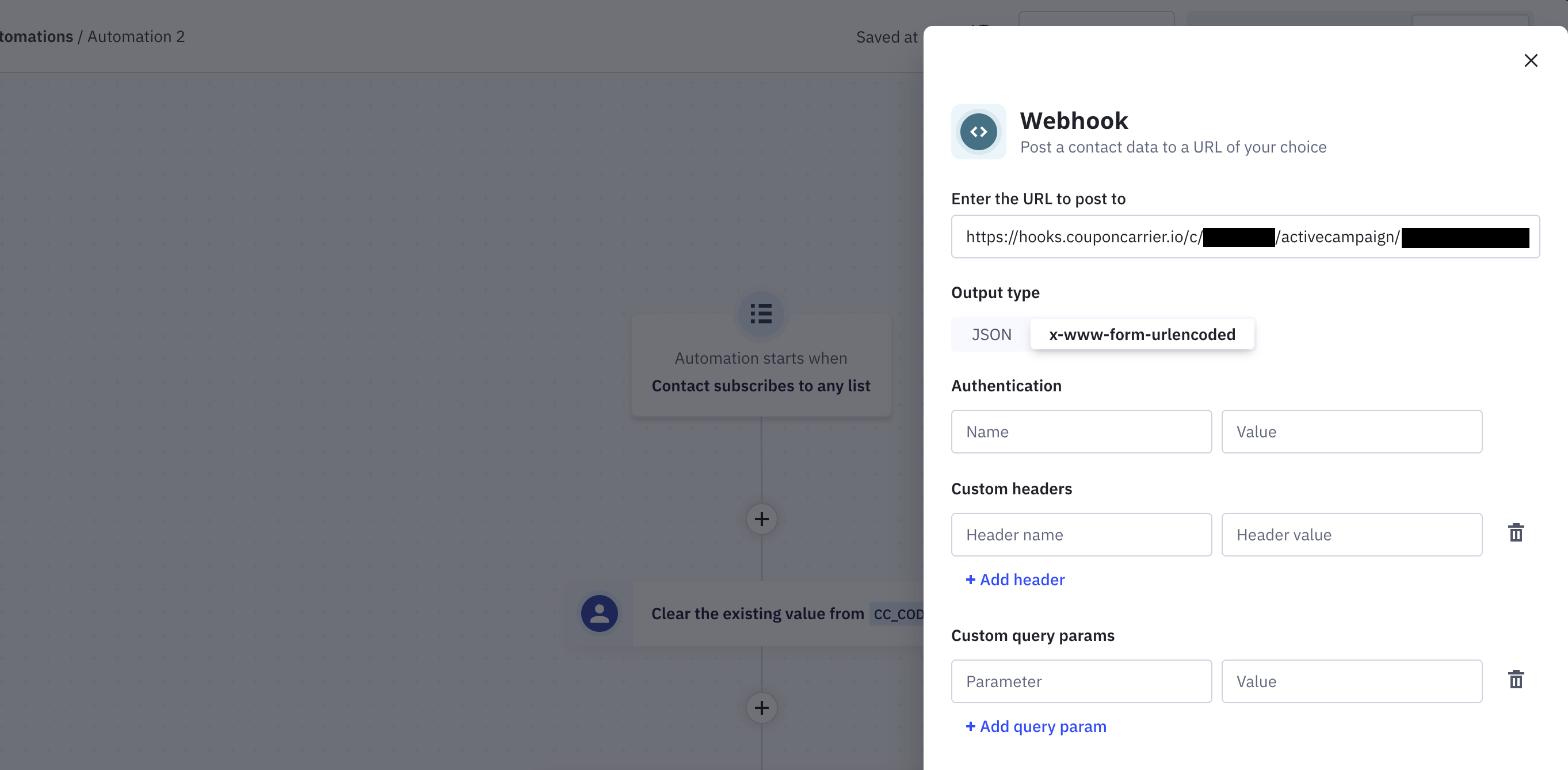
Second, Webhook. Paste the offer's URL under Enter the URL to post to. Set Output type to x-www-form-urlencoded and leave the other settings empty.
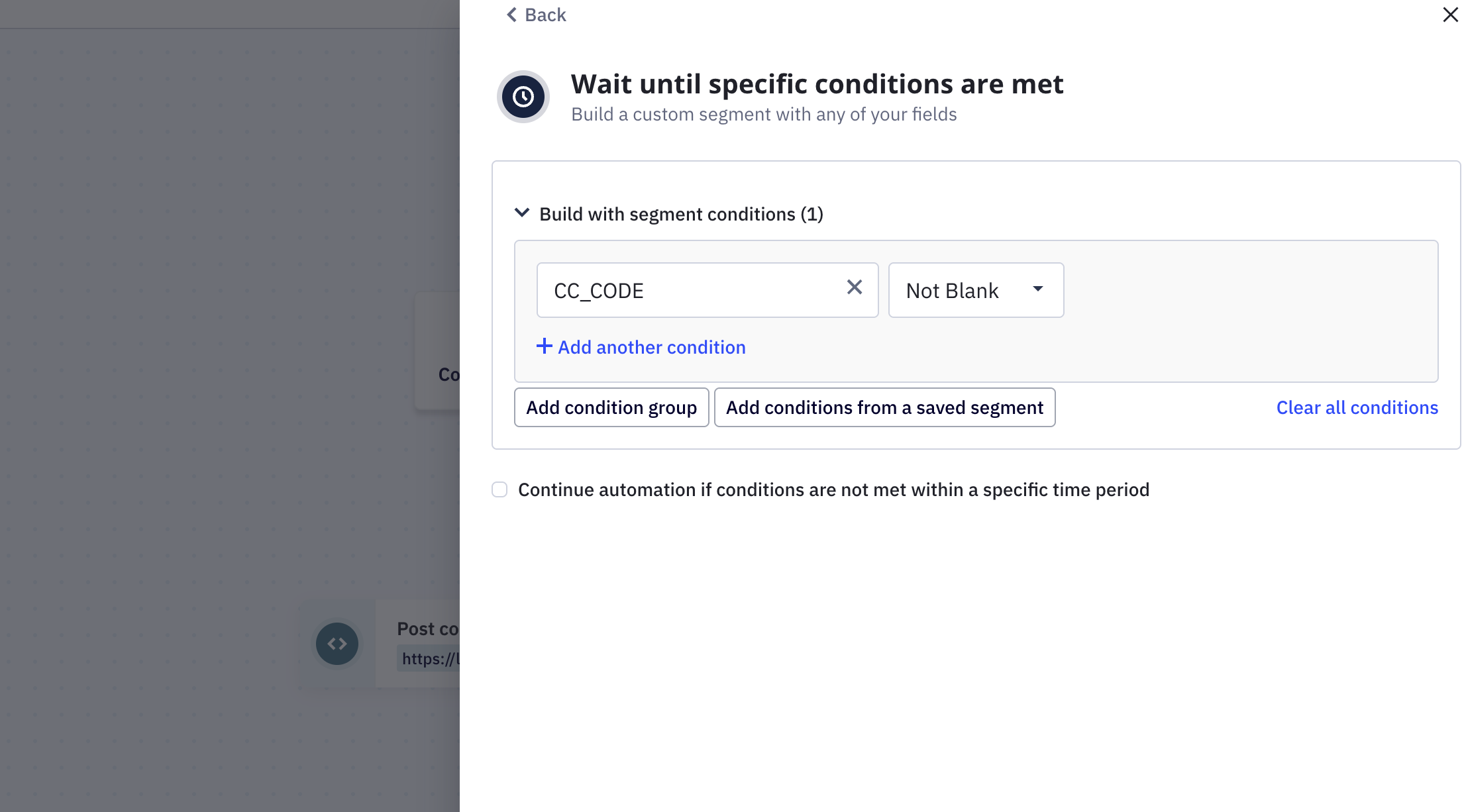
Third, Wait until specific conditions are met. Choose CC_CODE and Not Blank. The automation waits here until Coupon Carrier has saved the code, which usually takes a few seconds.
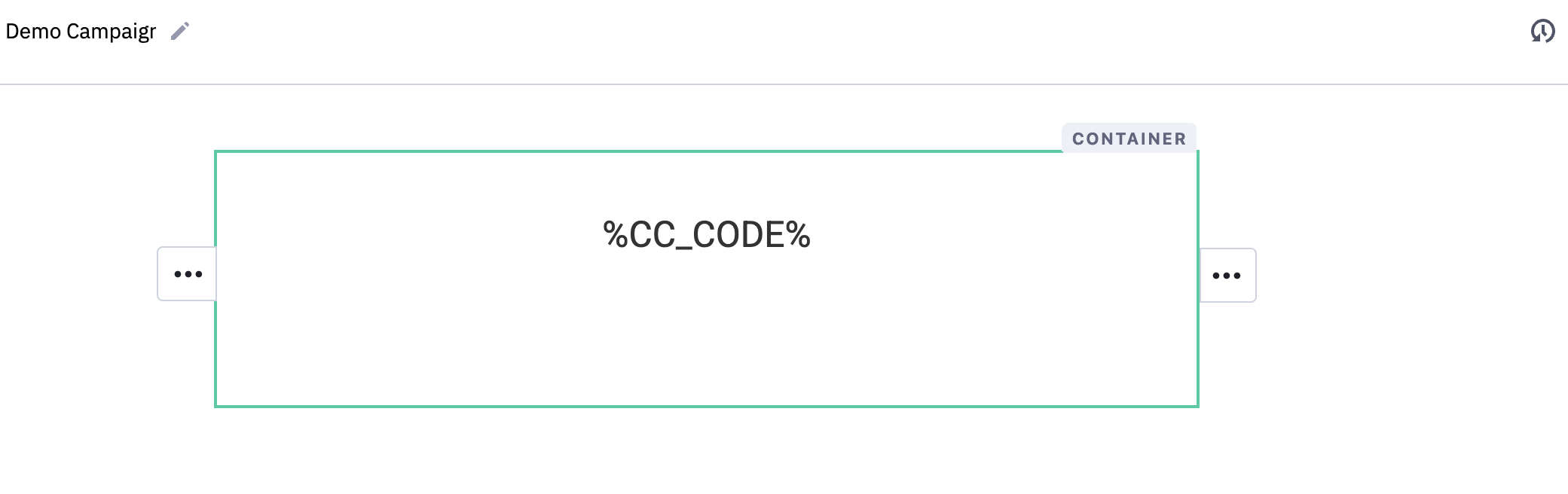
Fourth, Send an email. In the email, add the personalization tag where the code should show: %CC_CODE%
Then make the automation active.
Step 5: Test it
Until you go live, your campaign is in test mode. In test mode, contacts get a TEST- code and no real codes are used.
- Add yourself to the automation.
- Open your contact in ActiveCampaign. The
CC_CODEfield shows a code that starts with TEST-, and the automation moves on to the email.
When everything looks right, click Go live in Coupon Carrier. From then on, contacts get real codes.
Good to know when you test: one person gets one voucher per offer. If the same contact reaches the webhook again, they get the same code again, unless the offer gives a new code after a number of days. Coupon Carrier also counts mia+test1@example.com and mia+test2@example.com as the same person as mia@example.com , and ignores dots in Gmail addresses. To see different codes, test with addresses that are really different.
When no code can be given
Sometimes Coupon Carrier can't give a code. Nothing is saved in the field then, so the contact stays in Wait until and gets no email. Because the automation cleared the field first, the contact never gets an email with an old code.
These are the usual reasons:
- The offer is sold out. Add more codes to the offer.
- The campaign has been live and is now paused.
- The offer was removed or turned off, or its codes have passed their end date.
- The email tool is turned off in the campaign. Open Email tool and click Turn on the email tool.
- The URL is wrong or old. Copy it again with Copy URL.
- The webhook's Output type is JSON. Set it to x-www-form-urlencoded.
- The campaign uses another email tool, or another ActiveCampaign account than the one the automation is in.
- The field in Field for the code doesn't exist in ActiveCampaign.
- The campaign is in test mode and has reached its test limit for the day. Try again tomorrow.
When you have fixed the cause, add the contact to the automation again.
If you don't want contacts to stay in the wait, tick Continue automation if conditions are not met within a specific time period in the wait step. A contact who reaches the limit moves on without a code, so add a condition before the email that checks that CC_CODE is not blank.